Primavera P6

How does Primavera P6 calculate Planned Value Cost for Activities without linear distribution (using Resource Curves or Manual plan) in Earned Value Management
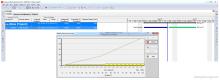
When we use Earned Value Management technique, we focus on:

  • Planned Value Cost (PV) = Budget At Completion * Schedule % Complete
  • Earned Value Cost (EV) = Budget At Completion * Performance % Complete (usually equal to Activity % Complete)
  • Schedule Variance (SV) = EV - PV
  • SV > 0 : project is good, ahead of schedule

So Planned Value Cost play a very important role here.

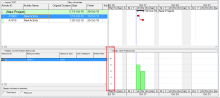
By default when we assign resource to activity, the unit is distributed equally (linear). Then calculation of Planned Value is as above.

Oracle Primavera P6 Professional – Get Filter Savvy

How to Mix the ‘And’ and the ‘Or’ Options in One Filter

Building a filter where all the conditions are either ‘And’ or ‘Or’ between each row is pretty straight forward. However, if you want to mix them up a little it’s not so obvious how you should do that in Oracle Primavera P6 Professional. This article will show you how.

Example: I want to find all the milestones in the project that have a date variance that is not equal to zero. In other words, I want to see any milestone that is now sitting on a date other than its baseline date.

Filed Under

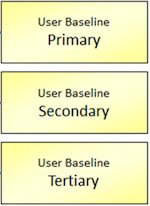
The 1, 2, 3 of Primavera P6 Baselines

Primavera P6 Professional allows you to assign up to three user baselines and one project baseline per project. The following article explains these capabilities and how they can be helpful in tracking the overall status of a project and near-term interim variance reports.

Take a look at the following diagram (taken from the Ten Six Primavera P6 training course) that outlines the concept of project and users baselines.

Filed Under

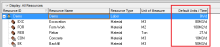
How to define Resource Productivity in Primavera P6 and create schedule

When create a schedule, we can based on Resource Productivity to estimate duration.

For example:

  • We have a team which can cast 10 m3 of concrete per day (This is Productivity)
  • We have an Foundation which take 100 m3 concrete.
  • Duration of Foundation activity will be  100 / 10 = 10 days

Now we will do it in Primavera.

Supposed that we have a schedule like below picture:

How to quickly identify Behind Schedule and Over Budget activity by Indicator UDF in Primavera P6

In Primavera P6, we can quickly identify behind schedule and over budget activity by using graphical indicator in User Defined Field.

I will show you how to do it.

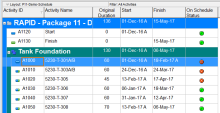
Supposed that we have a project which has baseline. After update progress, we can show these column the see whether an activity is behind schedule: