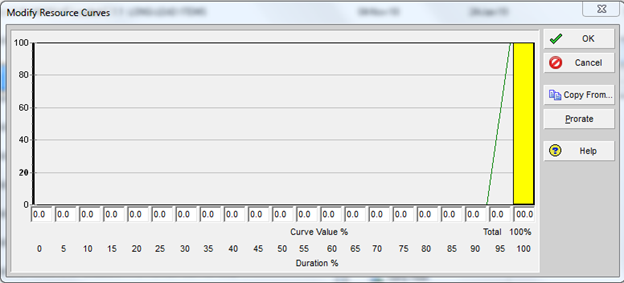
As per the following below Resource Curve and for an activity of 20 Days Original Duration the Planned Value will be exactly located on last day of the activity.
But for any activity with Original Duration more than 20 Days, the Planned Value will not be located in the last day of the activity.
Please advise how we can get the planned Value exactly on the last day of the activity for those activities exceed 20 Days original duration.



check both filters critical AND longest path
or create a new activity code all it my path and give it a code value of CP for critical path
now filter for the last activity in the schedule
now look at the predecessor window make sure that the columns labeled critrical and driving are shown if not add them
now look at the predcessors and look for the one that has BOTH critical and driving boxes checked
now highlight that activity and seelct GOTO at the bottom
keep doing this until you get to the activity that is on the data date or the start of the project
now highlight all of these activites and right click and select Assign
then select Activity Codes and select the code that you just added my path can select the CP value
now add a new filter
where my path equals CP
this is your true driving critical path
Hi Guys,
Can you suggest other ways of identifying ''CRITICAL PATH'' other than these 02 options:
1- Total Float Less Than or Equal to (any value xyz)
2- Longest Path
If you have any other ways to identify critical path, so please share.
Hi Zoltan,
So the remaining units will provide me forecast curve?
yes you can select the remaining units and generate a curve
Hi Guys,
Can you help with 01 clarification please?
How can we prepare forecast progress s-curve from p6?
Can we use ''Remaining Labor Unit'' from ''activity usage spreadsheet'' in p6 to develop a forecast progress curve?
by default the distribution of the curve is linear however you can assign a curve by going to the resource tab
right click and select Resource Assignmnets Columns
expand the General caterory on the left and select Curve and bring it to the right
not it is available in the resource tab
now click in the box and select your curve distribution
https://www.projectcubicle.com/assigning-expenses-in-primavera-p6/
Accrual Type - you can accrue at the finish of the activity by using this cell.